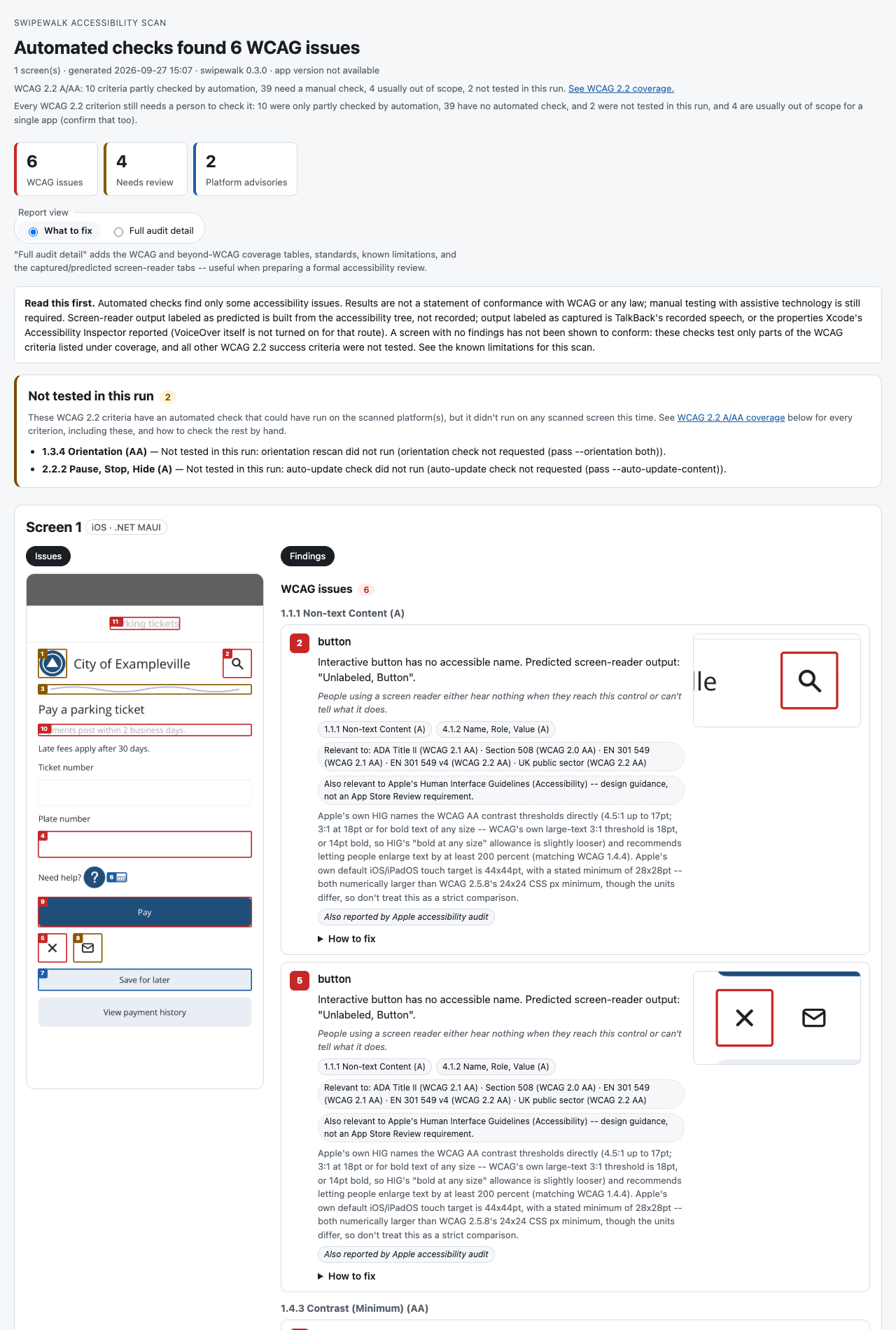
Swipewalk reads a running app through the platform's accessibility layer, the same layer screen readers use. It checks what users actually get: rendered text contrast, touch target sizes, missing or misleading names, and text that breaks at large text sizes. Each finding is mapped to WCAG 2.2 success criteria, and the report shows the order and wording a screen reader would likely announce (predicted, not recorded).
Because it reads the operating system's layer rather than your source code, it can scan an app whatever it was built with, although what it can see differs between frameworks (see how it was tested). It has been tried on native Android (Views and Jetpack Compose) and native iOS (UIKit and SwiftUI) sample apps and on .NET MAUI apps; an app built with another framework should scan too if it exposes its screens to the accessibility layer, but that hasn't been tried. For .NET MAUI there is extra help: on the iOS Simulator a finding can name the app's MAUI version and the MAUI release that fixes a known framework issue, the known MAUI quirks are listed in the limitations, and source-line pointing reads XAML, code-behind and .resx resources. Fix examples also exist for native Android and iOS, React Native, Flutter and hybrid web; they are written from each framework's documentation and have not yet been applied in a real app of that framework. Source-line pointing also exists for native Android and iOS, React Native and Flutter; for native Android and iOS it was measured on seven real apps with published source, and for React Native and Flutter only on made-up projects.
--screen-reader (TalkBack capture; opt-in on the command line, on by default in the Mac app) turns TalkBack on and installs a small helper app so it can read back exactly what TalkBack says, leaving TalkBack silent for the length of the capture and removing the app again once the settings are back. If a run is interrupted, the next run or swipewalk doctor restores what it can -- including TalkBack's settings, whether or not that run itself asks for --screen-reader -- and says how to change anything back by hand if it can't. Avoid running these checks on a phone someone relies on every day.
Install
Needs the .NET 10 SDK to install it (on a Mac the command-line tool then runs as a native program that needs no .NET to run), plus Android platform-tools (for Android) or Xcode (for iOS). So far Swipewalk has been run only on Macs; on Windows and Linux the same command installs the regular .NET version, which needs the .NET 10 runtime and has not been tried there.
dotnet tool install -g Swipewalk
swipewalk doctor --platform android
swipewalk scan --platform android --large-text --out report
If the install fails because your NuGet settings list a feed it can't reach, add --ignore-failed-sources. If the terminal then can't find swipewalk, add $HOME/.dotnet/tools to your PATH (the README has the exact line).
Or download the Mac app (signed and notarized; built for macOS 12 or later on Apple silicon and Intel, tested on macOS 27 on one Apple-silicon Mac) from the releases page: it runs the same scans in a window, with a device list, live progress, the report and a comparison with earlier runs.
To see a scan before trying your own app, download the made-up sample app (an Android .apk and an iOS Simulator .zip) from the same releases page and scan it on an emulator or Simulator; the user guide has the steps.
What a report looks like
What it does
- Scans one screen, or scans each new screen while you use the app; it can also rescan each at a large text size (Android and iOS, including physical phones, where it changes the phone's text size and restores it afterwards -- on an iPhone through the Settings app; use a test device). Screens that weren't scanned are listed as a manual task.
- Rescans a screen in the device's other dark/light appearance and other orientation (
scanonly for now), including on a physical iPhone where its own settings allow, so a contrast failure or layout problem that only shows up in one theme or one orientation isn't missed. A further opt-in check (alsoscanonly for now) takes a few more captures a few seconds apart and flags content that changed on its own. The Mac app offers these under More checks on New scan. - Measures text contrast from screenshot pixels, not from source code.
- Keeps WCAG issues apart from platform guidelines (Apple's 44×44 pt default and 28×28 pt stated minimum, Android's 48×48 dp touch targets).
- Labels findings with the standards they are relevant to: ADA Title II, Section 508, EN 301 549, UK public sector regulations, plus each standard's own clauses beyond WCAG, and the US states and other countries Swipewalk has mapped; each issue names the first few it is relevant to and how many more. In the Mac app you can find one by typing part of its name or a place, and list the ones you care about first. This is not legal advice.
- Compares runs: new, still found, and no longer found.
swipewalk compareand the Mac app can compare any two runs. - Includes Apple's own accessibility audit on iOS and Google's Accessibility Test Framework on Android. On Android debug builds, an opt-in
--web-auditadds a deeper audit of a WebView's own page with axe-core; on the Android emulator, web content inside an app is scanned either way (verified there only; on a physical phone it isn't scanned by default). - On Android, can also drive TalkBack itself over a screen's elements (opt-in with the command-line tool's
--screen-reader; on by default in the Mac app) and report differences from the predicted transcript for you to check, running locally with no cloud service. On iOS, can read what Xcode's Accessibility Inspector reports for each element instead of turning VoiceOver on. - On Android, can record a live session while you use TalkBack yourself, for as long as you like: which controls TalkBack reached, what it said, and your own notes, as evidence to review by hand (never a pass or fail). On a physical iPhone, a first-look option reads VoiceOver's on-screen captions while you swipe through a screen yourself (tried on one iPhone SE, with a sample app, in English).
- Groups findings that likely share one root cause (the same measured colors, touch-target size or identifier pattern) -- one change may fix several of them, but every instance is still listed -- and states who each finding affects, in plain language. Reports record the scanned app's own version (read from the device when available), so progress lines up with releases.
- Exports a saved run's findings as one Markdown ticket per issue, a CSV for bulk import, a self-contained HTML report, a tagged PDF for printing, or a per-criterion evidence report (one readable page: for each WCAG 2.2 A/AA criterion, what Swipewalk checked, what it found and what was not tested). Saved runs group by app and version, and you can combine several scans of one version into one report, choosing which scans go in -- the report covers only the screens in the scans you choose.
- Shows fix examples in the app's own framework -- .NET MAUI, native Android (Views, Jetpack Compose), native iOS (UIKit, SwiftUI), Flutter, React Native and hybrid web. Outside .NET MAUI and the earlier generic native examples they are written from each framework's own documentation and not yet tried in a real app of that framework. Optionally,
--sourcepoints a finding at a likely line in your own .NET MAUI, native Android, native iOS, React Native or Flutter project, read locally and never uploaded; for native Android and iOS it was measured on seven real apps with published source (often a short list of places rather than one line), and for .NET MAUI, React Native and Flutter only on Swipewalk's sample app and small made-up projects, so check the line it names. See the measurement. - Lets a team mark a finding as false positive, won't fix or accepted risk, with a required reason -- never "fixed". The report moves it into a "Triaged by your team" group (the total still counts it), and exports carry the mark, without changing the underlying scan data; the Mac app carries a mark forward into the app's next run when it is clearly the same finding.
- Shares a saved run as one
.swipewalkfile (screenshots and triage marks optional; not encrypted; signed by default with a key kept on your computer) that someone else opens withswipewalk importor the Mac app, after the file has been checked. A signature shows that the file hasn't changed since it was signed and which key signed it, not who made it. - Has a preview extension for VS Code, on the Visual Studio Marketplace (also attached to each release), that marks each finding on the source line it likely comes from, read from a saved run. It is read-only, makes no network calls and sends no telemetry; so far it has been tested on macOS only and not yet with a screen reader.
- Removes its own helper apps from a device when you ask (
swipewalk helpers remove, or the Mac app's Devices page), and can save a diagnostic report from its short local log for a bug report (swipewalk diagnostics), with serial numbers, device names, team IDs and your user name removed by pattern, which can miss something, so read it before attaching it; nothing is sent anywhere.
What it doesn't do
- No overlays: Swipewalk adds nothing to your app and doesn't claim to fix it at runtime; it reports what the app's accessibility layer exposes so the app itself can be fixed.
- No certification or legal advice: standards are shown for reference only, never as a compliance verdict.
- No automatic code changes: every fix is left to the developer to make and review.
- Not a replacement for testing with disabled people: automated checks find only some issues, and many criteria still need manual testing, ideally including people who use assistive technology every day.
Learn more
- Documentation, downloads and issue tracker on GitHub
- User guide: how to scan an app, read a report and check what automation cannot
- Case study: what it finds in native Android and iOS sample apps, a .NET MAUI sample app and Microsoft's .NET MAUI samples, and what it misses
- How Swipewalk is tested: devices, sample apps, results and what is not tested
- Known limitations · The Mac app's own accessibility statement, with its known gaps
- Disclaimer and terms of use · Privacy